
File Tree Explorer with Filter and Tabs — Free HTML CSS JS
File Tree Explorer · Navigation · Plain HTML, CSS & JS · Live preview
About this UI Snippet
File Tree Explorer — Animated Folders, Live Filter, Git Status and a Code Preview in Vanilla JS
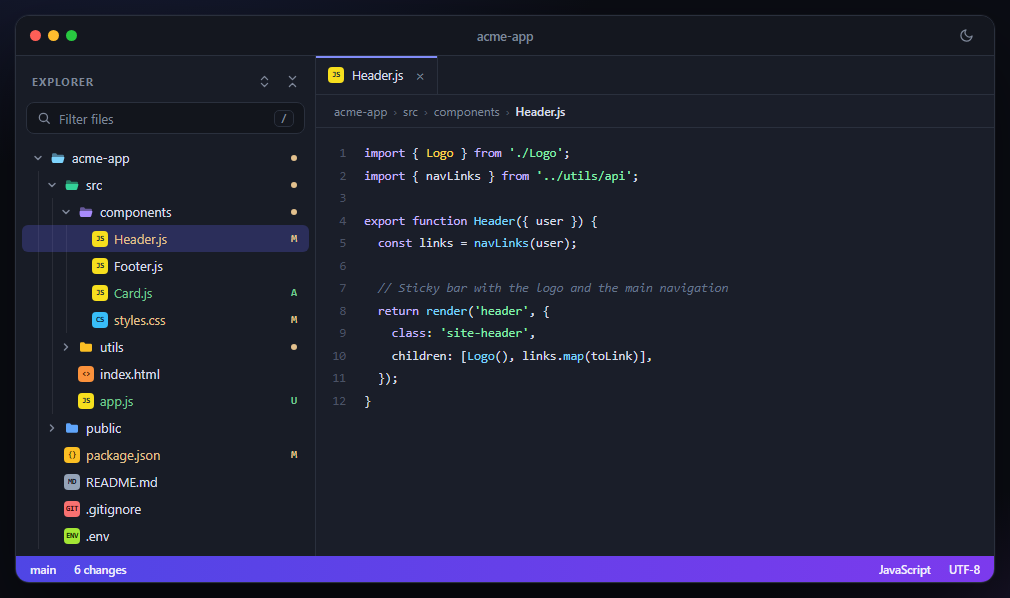
A good file tree does more than open and close folders. In a code editor, a cloud drive or a docs sidebar, people scan it, filter it, move through it with the keyboard and expect to see what they picked. This snippet builds that whole experience in plain JavaScript: folders slide open with a measured height transition, a filter box narrows the tree and highlights matches, changed files carry git status badges, a click opens a file in a tab next to the tree, and every action works from the keyboard.
The height: auto problem, solved
CSS cannot transition to or from height: auto or max-height: none, because the browser has no fixed number to interpolate toward. Hardcoding a guess such as max-height: 500px either clips tall folders or leaves a visible gap under short ones. animateHeight() uses the measure-then-transition technique instead. When a folder opens, it reads the child list's scrollHeight (which reports the true content height even while max-height is clamped to 0) and writes that pixel value, so the transition has two real numbers. A transitionend listener then switches max-height to none, so a folder opened later inside it can still grow without being clipped.
Closing needs two frames
If max-height is none and you set it straight to 0px, the browser has no starting number and the change is instant. So closing first writes the current scrollHeight (visually a no-op), waits one animation frame for the browser to commit it as the starting point, and sets 0px on a second frame. The chevron rotation, the folder icon swap (closed to open) and the slide are all plain CSS transitions after that.
A filter that keeps the tree readable
Typing in the filter keeps every row whose name matches, plus every folder above a match, opens those folders without animation, and wraps the matching letters in a <mark>. If a folder's own name matches, its whole subtree stays visible, so searching for "src" shows the entire source folder. The folders' normal open or closed state is remembered, and clearing the filter restores it exactly. Enter opens the first matching file, ArrowDown moves into the results, and Escape clears the box.
Per-file icons, folder colours and git status
File badges come from a plain object, EXT, keyed by the lowercased extension, with an other fallback; add a key to support a new type. Special folders such as src, components and public get their own tint from FOLDER_TINT. A node with git: 'M', 'A', 'U' or 'D' shows a status letter and a matching name colour, and any folder that contains a changed file shows a small dot, the way an editor does. The status bar counts the changes.
Tabs, breadcrumb and a tiny syntax highlighter
Clicking a file opens it in a tab, shows its path as a breadcrumb and renders its lines with line numbers. A short hand-written tokenizer, with no library, colours keywords, strings, numbers, comments, CSS properties, JSON keys, HTML tags and Markdown headings. Tabs can be closed, and picking a tab opens every folder above that file in the tree so you can see where it lives.
Indent guides and two themes
Each open folder draws a thin vertical guide under its chevron with one ::before pseudo-element positioned from a --cd depth variable, so deep trees stay easy to read. Every colour is a CSS variable, and the moon button swaps a data-theme attribute between dark and light.
Keyboard and accessibility
The tree uses the standard pattern: role="tree" with role="treeitem" rows, aria-expanded, aria-selected and aria-level, and a roving tabindex so Tab enters and leaves the tree as a single stop. ArrowDown and ArrowUp move between visible rows, Home and End jump to the ends, ArrowRight opens a folder or steps into it, ArrowLeft closes it or steps up to its parent, Enter or Space opens, a letter jumps to the next name that starts with it, and / jumps to the filter. Animation is skipped for visitors who prefer reduced motion.
What's included
Features
Step by step
How to Use
- 1Open and close foldersClick a folder row, or press Enter or Space on it. The chevron turns, the folder icon opens and the contents slide in with a measured max-height transition.
- 2Open a fileClick any file. It opens in a tab with a breadcrumb, line numbers and syntax colours. Open several and switch between them, or close one with the cross.
- 3Filter the treePress / or click the filter box and type. Matching rows are highlighted, their folders open, and everything else hides. Press Enter to open the first matching file and Escape to clear.
- 4Use only the keyboardArrow keys move, Right opens a folder or steps into it, Left closes it or steps to the parent, Home and End jump to the ends, and typing a letter jumps to the next name starting with it.
- 5Expand or collapse everythingUse the two buttons beside EXPLORER to open or close every folder at once. The filter is cleared first.
- 6Switch themeClick the moon button in the title bar to swap between the dark and light themes. Every colour is a CSS variable on the .ide element.
- 7Use your own filesEdit the DATA object in the JS panel. Give a file git: "M" for a status badge and lines: [...] for its preview, and add new extensions to the EXT table.
Real-world uses
Common Use Cases
Got questions?
Frequently Asked Questions
display: none has no in-between state, so the folder would snap open and shut with no animation. The max-height plus scrollHeight approach gives the browser two real numbers to interpolate, which is the only way to get a true slide without a JavaScript frame loop.
After opening, max-height is none, and going from none to 0px has no starting number, so it would apply instantly. The code writes the current scrollHeight first, waits one frame for the browser to commit it as the start, and sets 0px on a second frame so the transition can run.
Each folder remembers whether you opened it (meta.open). While a filter is active, folders open to show matches without changing that value. Clearing the filter calls paintOpen() with the remembered state, so the tree returns exactly as you left it.
For status, set git on the node to "M", "A", "U" or "D". For a new extension, add a key to the EXT object, for example ts: { c: "#3178c6", fg: "#fff", t: "TS" }. Anything not listed falls back to EXT.other.
tokenize() walks each line character by character and groups it into keywords, strings, numbers, comments, properties and tags, then adds neighbouring tokens of the same kind together. It is one short function and good enough for a short preview; use a real highlighter for long files.
Yes. Keep each node's open state in component state (a Set of open ids works well), run the scrollHeight measurement in a layout effect after the node renders, and keep the filter query as state. The animation is CSS-driven, so there is no timer to clean up.
Yes. visibleItems() rebuilds the flat top-to-bottom list of rows that are actually shown on every key press, so ArrowDown and ArrowUp skip collapsed subtrees at any depth and ArrowLeft steps up one parent at a time.
Yes. While the File Tree Explorer snippet gives you one pattern to copy, the free Responsive Navbar Builder at webdevpuneet.com/navbar-builder/ designs a whole navigation bar: logo, links and dropdown menus, a mobile hamburger menu (dropdown panel, slide-in drawer or full screen) and a scroll effect (sticky, shrink, hide on scroll or transparent). It has six presets, a live preview that runs the real code, and exports HTML + CSS + vanilla JS, React, Tailwind, Vue 3 or Angular — or you can click Fork & Edit to keep editing it in My Code.
Copy & paste
Source Code
<div class="ide" id="ide" data-theme="dark">
<div class="ide-bar">
<span class="ide-dots" aria-hidden="true"><i></i><i></i><i></i></span>
<span class="ide-title">acme-app</span>
<button type="button" class="ide-theme" id="themeBtn" aria-label="Switch to light theme" title="Switch theme">
<svg width="15" height="15" viewBox="0 0 24 24" fill="none" stroke="currentColor" stroke-width="2" stroke-linecap="round" stroke-linejoin="round" aria-hidden="true"><path d="M21 12.8A9 9 0 1 1 11.2 3a7 7 0 0 0 9.8 9.8z"/></svg>
</button>
</div>
<div class="ide-body">
<aside class="side">
<div class="side-head">
<span class="side-title">EXPLORER</span>
<div class="side-actions">
<button type="button" id="expandAll" aria-label="Expand all folders" title="Expand all"><svg width="15" height="15" viewBox="0 0 24 24" fill="none" stroke="currentColor" stroke-width="2" stroke-linecap="round" stroke-linejoin="round" aria-hidden="true"><path d="m7 15 5 5 5-5"/><path d="m7 9 5-5 5 5"/></svg></button>
<button type="button" id="collapseAll" aria-label="Collapse all folders" title="Collapse all"><svg width="15" height="15" viewBox="0 0 24 24" fill="none" stroke="currentColor" stroke-width="2" stroke-linecap="round" stroke-linejoin="round" aria-hidden="true"><path d="m7 20 5-5 5 5"/><path d="m7 4 5 5 5-5"/></svg></button>
</div>
</div>
<label class="filter">
<svg width="14" height="14" viewBox="0 0 24 24" fill="none" stroke="currentColor" stroke-width="2.2" stroke-linecap="round" stroke-linejoin="round" aria-hidden="true"><circle cx="11" cy="11" r="7"/><path d="m21 21-4.3-4.3"/></svg>
<input id="filter" type="search" placeholder="Filter files" aria-label="Filter files" autocomplete="off" spellcheck="false">
<kbd>/</kbd>
</label>
<ul class="tree" id="tree" role="tree" aria-label="Project files"></ul>
<p class="empty" id="empty" hidden>No files match that filter</p>
</aside>
<section class="editor" aria-label="File preview">
<div class="tabs" id="tabs" role="group" aria-label="Open files"></div>
<div class="crumbs" id="crumbs" aria-label="File path"></div>
<div class="code" id="code" tabindex="0"></div>
<div class="welcome" id="welcome">
<strong>Pick a file to preview it</strong>
<span><kbd>↑</kbd> <kbd>↓</kbd> move <kbd>→</kbd> <kbd>←</kbd> open or close <kbd>Enter</kbd> open <kbd>/</kbd> filter</span>
</div>
</section>
</div>
<div class="ide-status">
<span id="branch">main</span>
<span id="changes"></span>
<span class="sp"></span>
<span id="lang"></span>
<span>UTF-8</span>
</div>
</div>* { box-sizing: border-box; margin: 0; padding: 0; }
body { font-family: system-ui, -apple-system, 'Segoe UI', Roboto, sans-serif; min-height: 100vh; display: flex; align-items: center; justify-content: center; padding: 28px 20px; background: radial-gradient(ellipse 70% 60% at 20% 0%, #1b2140 0, transparent 60%), radial-gradient(ellipse 60% 50% at 100% 100%, #2a1b44 0, transparent 60%), #0b0d14; -webkit-font-smoothing: antialiased; }
/* Two themes share the same rules: only these variables change */
.ide { --win: #14171f; --side: #181c26; --editor: #1a1e29; --field: #12151c; --border: #2a303d; --text: #d7dce8; --muted: #7e8799; --hover: rgba(255,255,255,0.055); --sel: rgba(99,102,241,0.26); --accent: #818cf8; --guide: rgba(255,255,255,0.08); --ln: #4b5365;
--gm: #e2c08d; --ga: #73c991; --gd: #f07178;
--tk-k: #c4b5fd; --tk-s: #86efac; --tk-f: #7dd3fc; --tk-c: #64748b; --tk-n: #fdba74; --tk-p: #f0abfc; --tk-t: #fcd34d; --tk-h: #7dd3fc;
width: 100%; max-width: 980px; border-radius: 14px; overflow: hidden; background: var(--win); border: 1px solid var(--border); color: var(--text); box-shadow: 0 40px 90px rgba(0,0,0,0.55), 0 0 0 1px rgba(255,255,255,0.03); }
.ide[data-theme="light"] { --win: #eef1f6; --side: #ffffff; --editor: #fbfcfe; --field: #f1f4f9; --border: #dde2ec; --text: #1f2937; --muted: #6b7280; --hover: rgba(15,23,42,0.055); --sel: rgba(99,102,241,0.2); --accent: #4f46e5; --guide: rgba(15,23,42,0.1); --ln: #b4bccb;
--gm: #b45309; --ga: #15803d; --gd: #b91c1c;
--tk-k: #7c3aed; --tk-s: #15803d; --tk-f: #0369a1; --tk-c: #8a94a6; --tk-n: #c2410c; --tk-p: #a21caf; --tk-t: #a16207; --tk-h: #0369a1; }
.ide-bar { display: grid; grid-template-columns: 70px minmax(0, 1fr) 70px; align-items: center; padding: 0 14px; height: 40px; background: var(--win); border-bottom: 1px solid var(--border); }
.ide-dots { display: flex; gap: 7px; }
.ide-dots i { width: 11px; height: 11px; border-radius: 50%; background: #ff5f57; }
.ide-dots i:nth-child(2) { background: #febc2e; }
.ide-dots i:nth-child(3) { background: #28c840; }
.ide-title { text-align: center; font-size: 12.5px; font-weight: 600; color: var(--muted); }
.ide-theme { display: grid; place-items: center; width: 28px; height: 28px; justify-self: end; border: 0; border-radius: 7px; background: none; color: var(--muted); cursor: pointer; transition: background 0.15s, color 0.15s; }
.ide-theme:hover { background: var(--hover); color: var(--text); }
.ide-theme:focus-visible, .side-actions button:focus-visible, .tab:focus-visible { outline: 2px solid var(--accent); outline-offset: -2px; }
.ide-body { display: grid; grid-template-columns: 300px minmax(0, 1fr); height: 500px; }
/* Sidebar */
.side { display: flex; flex-direction: column; min-height: 0; background: var(--side); border-right: 1px solid var(--border); }
.side-head { display: flex; align-items: center; justify-content: space-between; padding: 12px 10px 8px 16px; }
.side-title { font-size: 11px; font-weight: 700; letter-spacing: 0.09em; color: var(--muted); }
.side-actions { display: flex; gap: 2px; }
.side-actions button { display: grid; place-items: center; width: 26px; height: 26px; border: 0; border-radius: 6px; background: none; color: var(--muted); cursor: pointer; transition: background 0.15s, color 0.15s; }
.side-actions button:hover { background: var(--hover); color: var(--text); }
.filter { display: flex; align-items: center; gap: 8px; margin: 0 10px 8px; padding: 0 10px; height: 32px; border-radius: 8px; background: var(--field); border: 1px solid var(--border); color: var(--muted); transition: border-color 0.15s, box-shadow 0.15s; }
.filter:focus-within { border-color: var(--accent); box-shadow: 0 0 0 3px color-mix(in srgb, var(--accent) 22%, transparent); }
.filter input { flex: 1; min-width: 0; border: 0; outline: 0; background: none; color: var(--text); font: inherit; font-size: 13px; }
.filter input::placeholder { color: var(--muted); }
.filter input::-webkit-search-cancel-button { filter: grayscale(1); cursor: pointer; }
.filter kbd, .welcome kbd { padding: 1px 6px; border-radius: 5px; border: 1px solid var(--border); background: var(--win); font: 600 11px ui-monospace, SFMono-Regular, Menlo, monospace; color: var(--muted); }
.filter:focus-within kbd, .filter:has(input:not(:placeholder-shown)) kbd { display: none; }
.tree, .children { list-style: none; }
.tree { flex: 1; min-height: 0; overflow-y: auto; padding: 2px 6px 10px; scrollbar-width: thin; scrollbar-color: var(--border) transparent; }
.tree [hidden] { display: none !important; }
.tree li { outline: none; }
.children { position: relative; overflow: hidden; max-height: 0; transition: max-height 0.22s ease; }
/* Indent guide: one vertical line under each open folder's chevron */
.children::before { content: ''; position: absolute; top: 0; bottom: 0; left: calc(16px + var(--cd, 0) * 14px); width: 1px; background: var(--guide); }
.row { position: relative; display: flex; align-items: center; gap: 6px; height: 27px; padding-right: 8px; border-radius: 6px; cursor: pointer; font-size: 13px; color: var(--text); user-select: none; transition: background 0.12s; }
.row:hover { background: var(--hover); }
li.sel > .row { background: var(--sel); }
li.focused > .row { box-shadow: inset 0 0 0 1px var(--accent); }
.chevron { display: flex; flex: none; width: 12px; height: 12px; color: var(--muted); transition: transform 0.18s ease; }
.chevron.open { transform: rotate(90deg); }
.chevron.none { visibility: hidden; }
.chevron svg { width: 12px; height: 12px; }
.icon { display: flex; align-items: center; justify-content: center; flex: none; width: 16px; height: 16px; }
.badge { display: grid; place-items: center; width: 16px; height: 16px; border-radius: 4px; font: 800 7.5px/1 ui-monospace, SFMono-Regular, Menlo, monospace; letter-spacing: -0.02em; }
.name { flex: 1; min-width: 0; white-space: nowrap; overflow: hidden; text-overflow: ellipsis; }
.name mark { background: color-mix(in srgb, var(--accent) 35%, transparent); color: inherit; border-radius: 3px; padding: 0 1px; }
.git { flex: none; width: 14px; text-align: center; font: 700 10.5px ui-monospace, SFMono-Regular, Menlo, monospace; }
.g-M .name, .g-M .git { color: var(--gm); }
.g-A .name, .g-A .git, .g-U .name, .g-U .git { color: var(--ga); }
.g-D .name, .g-D .git { color: var(--gd); text-decoration: line-through; }
.dirty { flex: none; width: 6px; height: 6px; margin: 0 4px; border-radius: 50%; background: var(--gm); }
.empty { padding: 18px 16px; font-size: 13px; color: var(--muted); text-align: center; }
/* Editor */
.editor { position: relative; display: flex; flex-direction: column; min-width: 0; min-height: 0; background: var(--editor); }
.tabs { display: flex; overflow-x: auto; min-height: 38px; background: var(--side); border-bottom: 1px solid var(--border); scrollbar-width: none; }
.tabs::-webkit-scrollbar { display: none; }
.tab { display: flex; align-items: center; gap: 8px; flex: none; height: 38px; padding: 0 8px 0 12px; border: 0; border-right: 1px solid var(--border); background: none; color: var(--muted); font: inherit; font-size: 12.5px; cursor: pointer; transition: background 0.12s, color 0.12s; }
.tab:hover { color: var(--text); }
.tab.on { background: var(--editor); color: var(--text); box-shadow: inset 0 2px 0 var(--accent); }
.tab .x { display: grid; place-items: center; width: 18px; height: 18px; border-radius: 5px; color: var(--muted); font-size: 15px; line-height: 1; }
.tab .x:hover { background: var(--hover); color: var(--text); }
.crumbs { display: flex; align-items: center; gap: 6px; padding: 8px 18px; font-size: 12px; color: var(--muted); border-bottom: 1px solid var(--border); white-space: nowrap; overflow: hidden; }
.crumbs b { color: var(--text); font-weight: 600; }
.crumbs i { font-style: normal; opacity: 0.5; }
.code { flex: 1; min-height: 0; overflow: auto; padding: 14px 0; font: 12.5px/1.8 ui-monospace, SFMono-Regular, Menlo, Consolas, monospace; outline: none; scrollbar-width: thin; scrollbar-color: var(--border) transparent; }
.ln { display: flex; }
.ln .n { flex: none; width: 48px; padding-right: 18px; text-align: right; color: var(--ln); user-select: none; }
.ln .t { white-space: pre; }
.tk-k { color: var(--tk-k); } .tk-s { color: var(--tk-s); } .tk-f { color: var(--tk-f); } .tk-c { color: var(--tk-c); font-style: italic; } .tk-n { color: var(--tk-n); } .tk-p { color: var(--tk-p); } .tk-t { color: var(--tk-t); } .tk-h { color: var(--tk-h); font-weight: 700; }
.imgprev { display: grid; place-items: center; gap: 10px; height: 100%; color: var(--muted); font: 12.5px system-ui, sans-serif; }
.imgprev .pic { width: 150px; height: 110px; border-radius: 10px; border: 1px solid var(--border); background: conic-gradient(#8a93a6 25%, #b9c0cf 0 50%, #8a93a6 0 75%, #b9c0cf 0) 0 0 / 16px 16px; opacity: 0.55; }
.welcome { position: absolute; inset: 38px 0 0; display: grid; place-content: center; gap: 10px; text-align: center; color: var(--muted); font-size: 13px; }
.welcome strong { color: var(--text); font-size: 15px; }
.welcome[hidden], .code[hidden], .crumbs[hidden] { display: none; }
.ide-status { display: flex; align-items: center; gap: 18px; height: 26px; padding: 0 14px; background: linear-gradient(90deg, #4f46e5, #7c3aed); color: rgba(255,255,255,0.92); font-size: 11.5px; font-weight: 500; }
.ide-status .sp { flex: 1; }
@media (max-width: 720px) {
body { padding: 14px 10px; }
.ide-body { grid-template-columns: minmax(0, 1fr); height: auto; }
.side { border-right: 0; border-bottom: 1px solid var(--border); }
.filter kbd { display: none; }
.tree { max-height: 270px; }
.editor { min-height: 300px; }
.welcome { padding: 0 16px; }
}
@media (prefers-reduced-motion: reduce) {
.children, .chevron { transition: none; }
}// A file explorer in the style of a code editor: animated folders, a filter, git status, tabs and a code preview.
// Each node is { name, type, git?, lines? }. Add files by editing this one object.
var DATA = {
name: 'acme-app', type: 'folder', children: [
{ name: 'src', type: 'folder', children: [
{ name: 'components', type: 'folder', children: [
{ name: 'Header.js', type: 'file', git: 'M', lines: [
"import { Logo } from './Logo';",
"import { navLinks } from '../utils/api';",
"",
"export function Header({ user }) {",
" const links = navLinks(user);",
"",
" // Sticky bar with the logo and the main navigation",
" return render('header', {",
" class: 'site-header',",
" children: [Logo(), links.map(toLink)],",
" });",
"}" ] },
{ name: 'Footer.js', type: 'file', lines: [
"export function Footer() {",
" const year = new Date().getFullYear();",
" return render('footer', { text: 'Acme Inc. ' + year });",
"}" ] },
{ name: 'Card.js', type: 'file', git: 'A', lines: [
"export function Card({ title, body }) {",
" return render('article', {",
" class: 'card',",
" children: [heading(title), paragraph(body)],",
" });",
"}" ] },
{ name: 'styles.css', type: 'file', git: 'M', lines: [
":root {",
" --brand: #6366f1;",
" --radius: 10px;",
"}",
"",
".site-header {",
" display: flex;",
" align-items: center;",
" height: 64px; /* stays on top */",
" background: var(--brand);",
"}" ] },
]},
{ name: 'utils', type: 'folder', children: [
{ name: 'format.js', type: 'file', lines: [
"export function money(cents) {",
" return '$' + (cents / 100).toFixed(2);",
"}" ] },
{ name: 'api.js', type: 'file', git: 'M', lines: [
"const BASE = 'https://api.acme.dev/v2';",
"",
"export async function getUser(id) {",
" const res = await fetch(BASE + '/users/' + id);",
" if (!res.ok) throw new Error('Request failed');",
" return res.json();",
"}" ] },
]},
{ name: 'index.html', type: 'file', lines: [
"<!doctype html>",
"<html lang=\"en\">",
" <head><title>Acme App</title></head>",
" <body><div id=\"root\"></div></body>",
"</html>" ] },
{ name: 'app.js', type: 'file', git: 'U', lines: [
"import { Header } from './components/Header';",
"import { Footer } from './components/Footer';",
"",
"mount(document.getElementById('root'), [Header, Footer]);" ] },
]},
{ name: 'public', type: 'folder', children: [
{ name: 'logo.svg', type: 'file', media: true },
{ name: 'favicon.png', type: 'file', media: true },
{ name: 'hero.png', type: 'file', media: true },
]},
{ name: 'package.json', type: 'file', git: 'M', lines: [
"{",
" \"name\": \"acme-app\",",
" \"version\": \"2.4.0\",",
" \"scripts\": {",
" \"dev\": \"vite\",",
" \"build\": \"vite build\"",
" }",
"}" ] },
{ name: 'README.md', type: 'file', lines: [
"# Acme App",
"A small demo project for the file tree.",
"- Click a folder to open it",
"- Use the arrow keys to move around",
"- Type in the filter to find a file" ] },
{ name: '.gitignore', type: 'file', lines: [
"# dependencies",
"node_modules",
"dist",
".env" ] },
{ name: '.env', type: 'file', lines: [
"# local settings, never committed",
"API_KEY=demo-key-123",
"PORT=3000" ] },
]
};
// File type -> badge colour, text colour and label. Add a key to support a new extension.
var EXT = {
js: { c: '#f7df1e', fg: '#1f2937', t: 'JS' },
ts: { c: '#3178c6', fg: '#fff', t: 'TS' },
css: { c: '#38bdf8', fg: '#0b2a3c', t: 'CS' },
html: { c: '#fb923c', fg: '#3b1a05', t: '<>' },
json: { c: '#fbbf24', fg: '#3a2a05', t: '{}' },
md: { c: '#94a3b8', fg: '#101827', t: 'MD' },
png: { c: '#34d399', fg: '#052e1f', t: 'IMG' },
svg: { c: '#f472b6', fg: '#3b0a22', t: 'SVG' },
gitignore: { c: '#f87171', fg: '#3a0a0a', t: 'GIT' },
env: { c: '#a3e635', fg: '#1a2e05', t: 'ENV' },
other: { c: '#cbd5e1', fg: '#1e293b', t: '' }
};
var LANG = { js: 'JavaScript', ts: 'TypeScript', css: 'CSS', html: 'HTML', json: 'JSON', md: 'Markdown', png: 'Image', svg: 'SVG image', gitignore: 'Plain Text', env: 'Plain Text' };
var FOLDER_TINT = { src: '#34d399', components: '#a78bfa', utils: '#fbbf24', public: '#60a5fa' };
var GIT_NAME = { M: 'Modified', A: 'Added', U: 'Untracked', D: 'Deleted' };
var CLOSED_FOLDER = '<svg width="16" height="16" viewBox="0 0 24 24" fill="currentColor" aria-hidden="true"><path d="M3 7a2 2 0 0 1 2-2h4l2 2h8a2 2 0 0 1 2 2v8a2 2 0 0 1-2 2H5a2 2 0 0 1-2-2V7z"/></svg>';
var OPEN_FOLDER = '<svg width="16" height="16" viewBox="0 0 24 24" fill="currentColor" aria-hidden="true"><path opacity=".55" d="M3 7a2 2 0 0 1 2-2h4l2 2h8a2 2 0 0 1 2 2v1H3V7z"/><path d="M2.4 11.5A1.5 1.5 0 0 1 3.9 10h16.2a1.5 1.5 0 0 1 1.45 1.9l-1.7 6A2 2 0 0 1 17.9 19.5H5a2 2 0 0 1-1.9-1.4l-.7-2.6z"/></svg>';
var CHEVRON = '<svg viewBox="0 0 24 24" fill="none" stroke="currentColor" stroke-width="3" stroke-linecap="round" stroke-linejoin="round" aria-hidden="true"><polyline points="9 6 15 12 9 18"></polyline></svg>';
var ide = document.getElementById('ide');
var tree = document.getElementById('tree');
var filterInput = document.getElementById('filter');
var emptyMsg = document.getElementById('empty');
var tabsEl = document.getElementById('tabs');
var crumbsEl = document.getElementById('crumbs');
var codeEl = document.getElementById('code');
var welcomeEl = document.getElementById('welcome');
var reduceMotion = window.matchMedia && window.matchMedia('(prefers-reduced-motion: reduce)').matches;
var rootMeta = null;
var allMetas = [];
var focusedMeta = null;
var activeMeta = null;
var openTabs = [];
var query = '';
function extOf(name) {
if (name === '.gitignore') return 'gitignore';
if (name === '.env') return 'env';
var i = name.lastIndexOf('.');
return i > 0 ? name.slice(i + 1).toLowerCase() : 'other';
}
function badgeFor(name) {
var info = EXT[extOf(name)] || EXT.other;
var b = document.createElement('span');
b.className = 'badge';
b.style.background = info.c;
b.style.color = info.fg;
b.textContent = info.t;
return b;
}
function countChanges(node) {
if (node.type === 'file') return node.git ? 1 : 0;
var n = 0;
node.children.forEach(function (c) { n += countChanges(c); });
return n;
}
function paintName(meta, hit) {
var el = meta.nameEl;
var name = meta.node.name;
el.textContent = '';
var at = hit && query ? name.toLowerCase().indexOf(query) : -1;
if (at < 0) { el.textContent = name; return; }
el.appendChild(document.createTextNode(name.slice(0, at)));
var mark = document.createElement('mark');
mark.textContent = name.slice(at, at + query.length);
el.appendChild(mark);
el.appendChild(document.createTextNode(name.slice(at + query.length)));
}
function buildNode(node, container, depth, parent) {
var isFolder = node.type === 'folder';
var li = document.createElement('li');
li.setAttribute('role', 'treeitem');
li.setAttribute('aria-level', String(depth + 1));
li.tabIndex = -1;
if (node.git) li.classList.add('g-' + node.git);
var row = document.createElement('div');
row.className = 'row';
row.style.paddingLeft = (10 + depth * 14) + 'px';
var chevron = document.createElement('span');
chevron.className = 'chevron' + (isFolder ? '' : ' none');
chevron.innerHTML = CHEVRON; // a constant string, never user data
row.appendChild(chevron);
var icon = document.createElement('span');
icon.className = 'icon';
if (isFolder) { icon.style.color = FOLDER_TINT[node.name] || '#7dd3fc'; icon.innerHTML = CLOSED_FOLDER; }
else icon.appendChild(badgeFor(node.name));
row.appendChild(icon);
var nameEl = document.createElement('span');
nameEl.className = 'name';
row.appendChild(nameEl);
var changed = countChanges(node);
if (!isFolder && node.git) {
var tag = document.createElement('span');
tag.className = 'git';
tag.textContent = node.git;
tag.title = GIT_NAME[node.git];
row.appendChild(tag);
} else if (isFolder && changed) {
var dot = document.createElement('span');
dot.className = 'dirty';
dot.title = changed + ' changed file' + (changed === 1 ? '' : 's');
row.appendChild(dot);
}
li.appendChild(row);
var meta = { node: node, isFolder: isFolder, depth: depth, parent: parent, li: li, row: row, chevron: chevron, iconEl: icon,
nameEl: nameEl, childrenEl: null, kids: [], open: false, shown: false, path: (parent && parent.path ? parent.path + '/' : '') + node.name };
li._meta = meta;
allMetas.push(meta);
paintName(meta, false);
if (isFolder) {
var kids = document.createElement('ul');
kids.className = 'children';
kids.setAttribute('role', 'group');
kids.style.setProperty('--cd', depth);
kids.style.maxHeight = '0px';
li.setAttribute('aria-expanded', 'false');
meta.childrenEl = kids;
node.children.forEach(function (child) { meta.kids.push(buildNode(child, kids, depth + 1, meta)); });
li.appendChild(kids);
}
row.addEventListener('click', function () {
setFocus(meta);
if (isFolder) toggle(meta); else openFile(meta);
});
container.appendChild(li);
return meta;
}
/* Why not just transition height? CSS cannot animate to or from height: auto, because auto is not a number the browser can
interpolate. So: read the real content height with scrollHeight (it is correct even while max-height is clamped to 0),
set max-height to that pixel value so there are two real numbers to animate between, and when the transition ends switch
to 'none' so a folder opened later inside it can still grow. Closing first turns 'none' back into a real number, waits
two frames so the browser commits it as the starting point, then animates to 0. */
function animateHeight(el, open) {
if (reduceMotion) { el.style.maxHeight = open ? 'none' : '0px'; return; }
if (open) {
el.style.maxHeight = el.scrollHeight + 'px';
var onEnd = function (e) {
if (e.propertyName !== 'max-height') return;
el.style.maxHeight = 'none';
el.removeEventListener('transitionend', onEnd);
};
el.addEventListener('transitionend', onEnd);
} else {
if (el.style.maxHeight === 'none' || el.style.maxHeight === '') el.style.maxHeight = el.scrollHeight + 'px';
requestAnimationFrame(function () {
requestAnimationFrame(function () { el.style.maxHeight = '0px'; });
});
}
}
function paintOpen(meta, open, animate) {
meta.shown = open;
meta.chevron.classList.toggle('open', open);
meta.li.setAttribute('aria-expanded', String(open));
meta.iconEl.innerHTML = open ? OPEN_FOLDER : CLOSED_FOLDER;
if (animate) animateHeight(meta.childrenEl, open);
else meta.childrenEl.style.maxHeight = open ? 'none' : '0px';
}
function toggle(meta) {
meta.open = !meta.shown;
paintOpen(meta, meta.open, true);
}
function setAll(open) {
if (query) { filterInput.value = ''; applyFilter(); }
allMetas.forEach(function (m) {
if (!m.isFolder || m === rootMeta) return;
m.open = open;
paintOpen(m, open, false);
});
}
// Rows that are on screen right now, top to bottom
function visibleItems() {
var out = [];
(function walk(m) {
if (m.li.hidden) return;
out.push(m);
if (m.isFolder && m.shown) m.kids.forEach(walk);
})(rootMeta);
return out;
}
function setFocus(meta) {
if (focusedMeta) { focusedMeta.li.classList.remove('focused'); focusedMeta.li.tabIndex = -1; }
focusedMeta = meta;
meta.li.classList.add('focused');
meta.li.tabIndex = 0;
meta.li.focus();
meta.row.scrollIntoView({ block: 'nearest' });
}
// The filter: keeps rows that match (or sit above one), opens their folders, highlights the match
function applyFilter() {
query = filterInput.value.trim().toLowerCase();
var shownCount = 0;
function visit(m, force) {
var self = !query || m.node.name.toLowerCase().indexOf(query) !== -1;
var forceKids = force || (self && !!query);
var kidShown = false;
m.kids.forEach(function (k) { if (visit(k, forceKids)) kidShown = true; });
var show = !query || force || self || kidShown;
m.li.hidden = !show;
paintName(m, self && !!query);
if (m.isFolder) paintOpen(m, query ? kidShown : m.open, false);
if (show && m !== rootMeta) shownCount++;
return show;
}
visit(rootMeta, false);
emptyMsg.hidden = !query || shownCount > 0;
}
// ---- Editor: tabs, breadcrumb and a small syntax highlighter ----
var KEYWORDS = {
js: ['import', 'from', 'export', 'default', 'const', 'let', 'var', 'function', 'return', 'if', 'else', 'new', 'await', 'async', 'class', 'throw', 'true', 'false', 'null'],
json: ['true', 'false', 'null']
};
function isWord(ch, dash) {
return (ch >= 'a' && ch <= 'z') || (ch >= 'A' && ch <= 'Z') || (ch >= '0' && ch <= '9') || ch === '_' || ch === '$' || (dash && ch === '-');
}
function tokenize(line, kind) {
var out = [];
function add(t, c) {
var last = out[out.length - 1];
if (last && last.c === c) last.t += t; else out.push({ t: t, c: c });
}
if (kind === 'md') { add(line, line.charAt(0) === '#' ? 'h' : (line.charAt(0) === '-' ? 'f' : '')); return out; }
if (kind === 'css' && line.replace(/ +$/, '').slice(-1) === '{') { add(line, 'f'); return out; }
var kws = KEYWORDS[kind] || [];
var dash = kind === 'css';
var i = 0;
while (i < line.length) {
var ch = line.charAt(i);
var two = line.substr(i, 2);
if ((kind === 'js' && two === '//') || ((kind === 'env' || kind === 'txt') && ch === '#')) { add(line.slice(i), 'c'); break; }
if (kind === 'css' && two === '/*') {
var close = line.indexOf('*/', i + 2);
var stop = close < 0 ? line.length : close + 2;
add(line.slice(i, stop), 'c'); i = stop; continue;
}
if (kind === 'html' && ch === '<') {
var end = line.indexOf('>', i);
var tag = end < 0 ? line.slice(i) : line.slice(i, end + 1);
add(tag, 'k'); i += tag.length; continue;
}
if (ch === '"' || ch === "'") {
var q = line.indexOf(ch, i + 1);
var e = q < 0 ? line.length : q + 1;
var isKey = kind === 'json' && line.charAt(e) === ':';
add(line.slice(i, e), isKey ? 'p' : 's'); i = e; continue;
}
if (kind === 'css' && ch === '#') {
var j = i + 1;
while (j < line.length && isWord(line.charAt(j), false)) j++;
add(line.slice(i, j), 'n'); i = j; continue;
}
if (ch >= '0' && ch <= '9') {
var k = i;
while (k < line.length && ((line.charAt(k) >= '0' && line.charAt(k) <= '9') || line.charAt(k) === '.')) k++;
add(line.slice(i, k), 'n'); i = k; continue;
}
if (isWord(ch, dash)) {
var w = i;
while (w < line.length && isWord(line.charAt(w), dash)) w++;
var word = line.slice(i, w);
var after = line.slice(w).replace(/^ +/, '').charAt(0);
var cls = '';
if (kws.indexOf(word) !== -1) cls = 'k';
else if (kind === 'css' && after === ':') cls = 'p';
else if ((kind === 'env') && after === '=') cls = 'p';
else if (after === '(') cls = 'f';
else if (word.charAt(0) >= 'A' && word.charAt(0) <= 'Z') cls = 't';
add(word, cls); i = w; continue;
}
add(ch, ''); i++;
}
return out;
}
function kindOf(name) {
var e = extOf(name);
if (e === 'ts') return 'js';
if (e === 'gitignore') return 'txt';
return e;
}
function renderCode(meta) {
codeEl.textContent = '';
if (meta.node.media) {
var box = document.createElement('div');
box.className = 'imgprev';
var pic = document.createElement('div');
pic.className = 'pic';
var cap = document.createElement('span');
cap.textContent = meta.node.name + ' · image preview';
box.appendChild(pic);
box.appendChild(cap);
codeEl.appendChild(box);
return;
}
var kind = kindOf(meta.node.name);
(meta.node.lines || []).forEach(function (line, n) {
var ln = document.createElement('div');
ln.className = 'ln';
var num = document.createElement('span');
num.className = 'n';
num.textContent = String(n + 1);
var text = document.createElement('span');
text.className = 't';
tokenize(line, kind).forEach(function (tk) {
var s = document.createElement('span');
if (tk.c) s.className = 'tk-' + tk.c;
s.textContent = tk.t;
text.appendChild(s);
});
if (!line) text.textContent = ' ';
ln.appendChild(num);
ln.appendChild(text);
codeEl.appendChild(ln);
});
}
function renderTabs() {
tabsEl.textContent = '';
openTabs.forEach(function (m) {
var tab = document.createElement('button');
tab.type = 'button';
tab.className = 'tab' + (m === activeMeta ? ' on' : '');
if (m === activeMeta) tab.setAttribute('aria-current', 'true');
tab.appendChild(badgeFor(m.node.name));
var label = document.createElement('span');
label.textContent = m.node.name;
tab.appendChild(label);
var x = document.createElement('span');
x.className = 'x';
x.textContent = '×';
x.setAttribute('role', 'button');
x.setAttribute('aria-label', 'Close ' + m.node.name);
x.addEventListener('click', function (e) { e.stopPropagation(); closeTab(m); });
tab.appendChild(x);
tab.addEventListener('click', function () { reveal(m); showFile(m); });
tabsEl.appendChild(tab);
});
}
function renderCrumbs(meta) {
crumbsEl.textContent = '';
var parts = meta.path.split('/');
parts.forEach(function (p, i) {
if (i) { var sep = document.createElement('i'); sep.textContent = '›'; crumbsEl.appendChild(sep); }
var el = document.createElement(i === parts.length - 1 ? 'b' : 'span');
el.textContent = p;
crumbsEl.appendChild(el);
});
}
function setStatus() {
var n = countChanges(DATA);
document.getElementById('branch').textContent = 'main';
document.getElementById('changes').textContent = n + ' change' + (n === 1 ? '' : 's');
document.getElementById('lang').textContent = activeMeta ? (LANG[extOf(activeMeta.node.name)] || 'Plain Text') : '';
}
function showFile(meta) {
if (activeMeta) { activeMeta.li.classList.remove('sel'); activeMeta.li.setAttribute('aria-selected', 'false'); }
activeMeta = meta;
meta.li.classList.add('sel');
meta.li.setAttribute('aria-selected', 'true');
welcomeEl.hidden = true;
codeEl.hidden = false;
crumbsEl.hidden = false;
renderTabs();
renderCode(meta);
renderCrumbs(meta);
setStatus();
}
function openFile(meta) {
if (openTabs.indexOf(meta) === -1) openTabs.push(meta);
showFile(meta);
}
function closeTab(meta) {
var i = openTabs.indexOf(meta);
if (i === -1) return;
openTabs.splice(i, 1);
if (activeMeta !== meta) { renderTabs(); return; }
meta.li.classList.remove('sel');
meta.li.setAttribute('aria-selected', 'false');
activeMeta = null;
var next = openTabs[i] || openTabs[i - 1];
if (next) { showFile(next); return; }
renderTabs();
codeEl.hidden = true;
crumbsEl.hidden = true;
welcomeEl.hidden = false;
setStatus();
}
// Open every folder above a file (and drop the filter if it hides the file) so the row can be seen
function reveal(meta) {
if (meta.li.hidden) { filterInput.value = ''; applyFilter(); }
for (var p = meta.parent; p; p = p.parent) {
if (!p.shown) { p.open = true; paintOpen(p, true, false); }
}
meta.row.scrollIntoView({ block: 'nearest' });
}
// ---- Keyboard: roving tabindex, arrows, Home/End, type-ahead ----
tree.addEventListener('keydown', function (e) {
if (!focusedMeta || e.ctrlKey || e.metaKey || e.altKey) return;
var items = visibleItems();
var i = items.indexOf(focusedMeta);
var m = focusedMeta;
if (e.key === 'ArrowDown') { e.preventDefault(); if (items[i + 1]) setFocus(items[i + 1]); }
else if (e.key === 'ArrowUp') { e.preventDefault(); if (items[i - 1]) setFocus(items[i - 1]); }
else if (e.key === 'Home') { e.preventDefault(); setFocus(items[0]); }
else if (e.key === 'End') { e.preventDefault(); setFocus(items[items.length - 1]); }
else if (e.key === 'ArrowRight') {
e.preventDefault();
if (m.isFolder) { if (!m.shown) toggle(m); else if (m.kids.length) setFocus(m.kids.filter(function (k) { return !k.li.hidden; })[0] || m); }
} else if (e.key === 'ArrowLeft') {
e.preventDefault();
if (m.isFolder && m.shown) toggle(m); else if (m.parent) setFocus(m.parent);
} else if (e.key === 'Enter' || e.key === ' ') {
e.preventDefault();
if (m.isFolder) toggle(m); else openFile(m);
} else if (e.key === '/') {
e.preventDefault();
filterInput.focus();
} else if (e.key.length === 1 && e.key !== ' ') {
// Type-ahead: jump to the next row whose name starts with the typed letter
var ch = e.key.toLowerCase();
var order = items.slice(i + 1).concat(items.slice(0, i + 1));
var hit = order.filter(function (x) { return x.node.name.toLowerCase().charAt(0) === ch; })[0];
if (hit) setFocus(hit);
}
});
filterInput.addEventListener('input', applyFilter);
filterInput.addEventListener('keydown', function (e) {
if (e.key === 'Escape') {
if (filterInput.value) { filterInput.value = ''; applyFilter(); } else if (focusedMeta) setFocus(focusedMeta);
} else if (e.key === 'ArrowDown') {
e.preventDefault();
var items = visibleItems();
if (items.length) setFocus(items[query && items[1] ? 1 : 0]);
} else if (e.key === 'Enter') {
var first = visibleItems().filter(function (x) { return !x.isFolder; })[0];
if (first) { setFocus(first); openFile(first); }
}
});
document.getElementById('expandAll').addEventListener('click', function () { setAll(true); });
document.getElementById('collapseAll').addEventListener('click', function () { setAll(false); });
document.getElementById('themeBtn').addEventListener('click', function () {
var light = ide.getAttribute('data-theme') !== 'light';
ide.setAttribute('data-theme', light ? 'light' : 'dark');
this.setAttribute('aria-label', light ? 'Switch to dark theme' : 'Switch to light theme');
});
// Build the tree, open the first folders, and show one file so the preview is never empty
rootMeta = buildNode(DATA, tree, 0, null);
rootMeta.open = true; paintOpen(rootMeta, true, false);
var srcMeta = rootMeta.kids[0];
srcMeta.open = true; paintOpen(srcMeta, true, false);
srcMeta.kids[0].open = true; paintOpen(srcMeta.kids[0], true, false);
rootMeta.li.tabIndex = 0;
focusedMeta = rootMeta;
openFile(srcMeta.kids[0].kids[0]);
setStatus();Extend with AI
Take This Snippet Further With AI
Paste this snippet's JS into an AI assistant like Claude and ask it to explain why the collapse animation needs two nested requestAnimationFrame calls, and how the filter keeps each folder's remembered state separate from the state it shows while filtering. Both are easy to get wrong when you rebuild the pattern. For next steps the snippet does not have, ask for drag and drop to move files between folders, inline rename on F2, a right-click context menu, multi-select with Shift and Ctrl, loading a folder's children lazily from an API, or swapping the small tokenizer for a real highlighter such as Shiki or Prism.
Prompt to recreate it
Copy this into your AI assistant of choice to build the effect from scratch, or as a jumping-off point for your own variant:
Build a code-editor-style file explorer in plain HTML, CSS and JavaScript, with no libraries, inside a rounded window with a title bar, a sidebar and a file preview.

Requirements:
- Data: one nested object of { name, type: 'folder' | 'file', git?, lines?, children? }. A recursive builder creates <ul>/<li> rows. Folders get a rotating SVG chevron and a closed/open folder icon (tinted by name, for example src, components, utils, public); files get a small coloured badge looked up from an extension table with a fallback.
- Folder animation: open by setting the child list's max-height to its measured scrollHeight and, when the transition ends, switching to none. Close by first writing the current scrollHeight, waiting two animation frames, then setting 0px. Explain in a comment why CSS cannot transition height: auto. Skip animation for prefers-reduced-motion.
- Indent guides: one ::before line per open folder, positioned from a --cd depth custom property.
- Git status: a letter badge (M, A, U, D) with a matching name colour on changed files, and a dot on folders containing changes. Show a change count in a status bar.
- Filter: a search box above the tree. Keep rows that match or sit above a match, open their folders without animation, highlight the matching letters with <mark>, keep a folder's whole subtree if the folder itself matches, show a "No files match" message, and restore each folder's remembered open state when the box is cleared. Enter opens the first matching file, ArrowDown moves into the tree, Escape clears.
- Editor: clicking a file opens it in a closable tab, with a breadcrumb path and a line-numbered preview coloured by a small hand-written tokenizer (keywords, strings, numbers, comments, CSS properties, JSON keys, HTML tags, Markdown headings). Image files show a placeholder. Selecting a tab opens every folder above that file in the tree.
- Toolbar: Expand all and Collapse all buttons beside the EXPLORER heading, and a dark/light theme button in the title bar that flips a data-theme attribute; every colour is a CSS variable.
- Keyboard and ARIA: role="tree" with role="treeitem" items, aria-expanded, aria-selected, aria-level and a roving tabindex; ArrowUp/Down, Home/End, ArrowRight (open or step in), ArrowLeft (close or step to parent), Enter/Space, type-ahead by first letter, and / to focus the filter.
- Layout: a two-column window on desktop that stacks (tree above the editor) below 720px, with no horizontal page scroll.
Want to tighten it up first? Run this prompt through the AI Prompt Studio to score it across 8 quality dimensions, catch anti-patterns, and tune the wording for Claude, ChatGPT, or Gemini before you paste it in.