
Desktop · 1280px · shown at 0% · edit the text, images and colours in the panel

Class Timetable — Free Website Section Template
Menus & listings · v1.0.0 · Updated 2026-11-15 · Responsive · GSAP animation · HTML, React & Vue
Extend with AI
Take This Section Further With AI
To show live availability, an AI assistant can load classes and spots from your booking system, let visitors save their favourite classes, or add an "Add to calendar" button to each row.
Prompt to recreate it
Copy this into your AI assistant of choice to build the effect from scratch, or as a jumping-off point for your own variant:
Create a weekly class timetable section in HTML, CSS and JavaScript.

- A centered heading and intro, then a row of day tabs (Mon to Sun, only days that have classes) with today marked "Today" and selected first, and a row of class-type filter chips ("All classes" plus one per type).
- Below, a list of class rows for the selected day, sorted by start time. Each row is a grid: start time and length on the left; the class name, "with Teacher" and two chips (type and level) in the middle; and on the right a "4 spots left" label and a "Book" button.
- Tabs and chips are buttons with aria-pressed. If no class matches the day and type, show a friendly message.
- Accept 24-hour and 12-hour times, and stack the row on narrow screens with the time and length across the top.
Want to tighten it up first? Run this prompt through the AI Prompt Studio to score it across 8 quality dimensions, catch anti-patterns, and tune the wording for Claude, ChatGPT, or Gemini before you paste it in.
What's included
Features
About this section
Class Timetable — Free Weekly Schedule Section
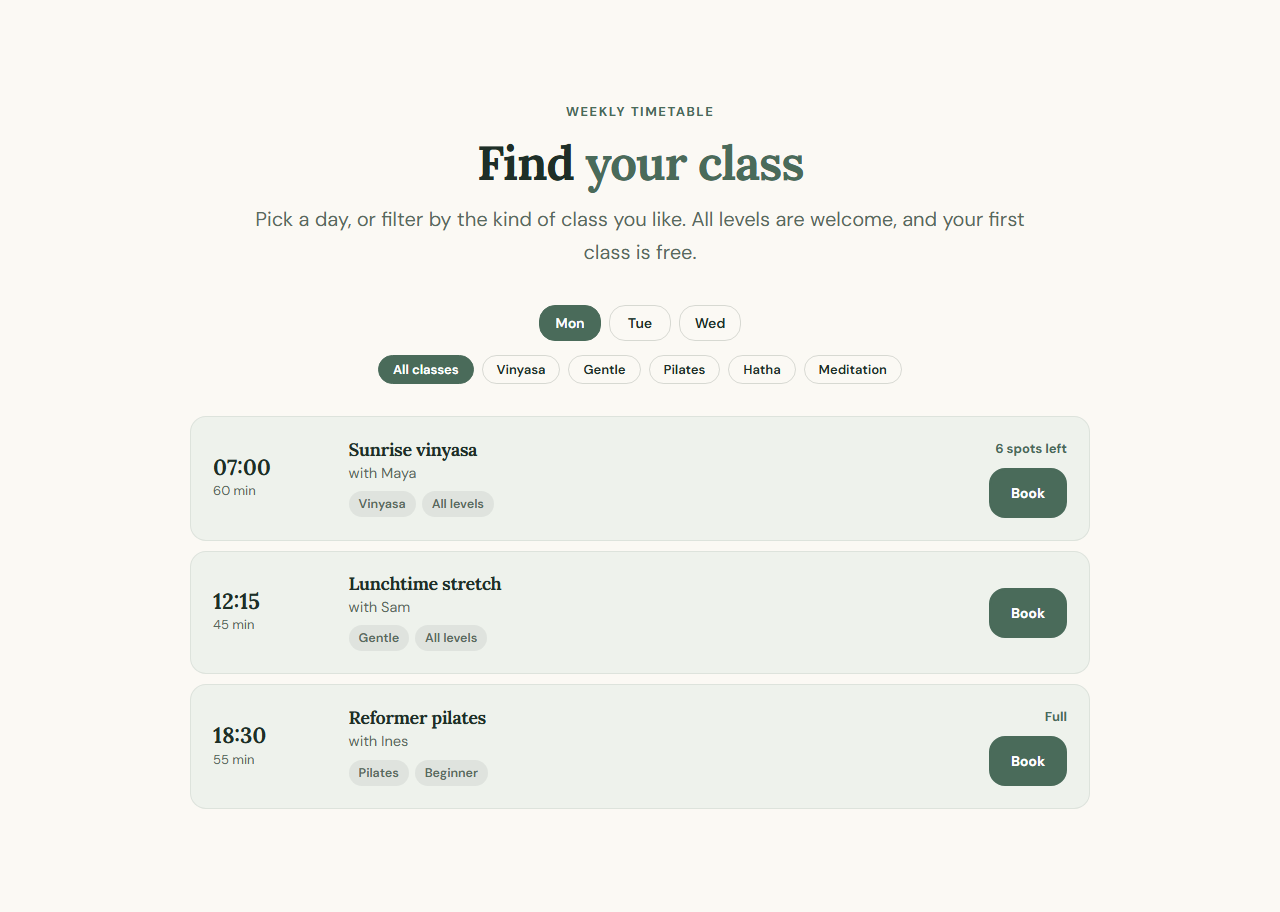
Class Timetable is the weekly schedule studios put on their website so people can see what is on and book it. Day tabs run from Monday to Sunday with today marked and opened first, filter chips let visitors narrow the week to Vinyasa, Pilates or Meditation, and every class is a clear row with the start time, name, teacher, length, level, spots left and a Book button.
Type the classes in any order
Each class has a day, a start time and a type. The section sorts every day by time for you, accepts 24-hour times such as 18:30 or 12-hour times such as 6:30 pm, and builds the day tabs and type chips from what you typed. A day with no classes simply has no tab, and a chip that matches nothing on a day shows a friendly message.
Honest availability
The spots-left field is free text, so you can write "4 spots left" or "Full" when it is true. It is shown beside the Book button and is not connected to a booking system, so keep it up to date or leave it empty. Link each Book button to your booking form, calendar tool or phone number.
Works without extras
Tabs and chips are real buttons with a pressed state for keyboard and screen reader users. Without JavaScript, every class shows in the order typed, each with its day.
Keeping the timetable current
Classes are one simple list of day, time, name, type and teacher, so a new term is a few minutes of editing, and the export carries the small script that builds the tabs and sorts each day. Point each Book button at a booking form for class requests, or show memberships and prices beside it with the Services & Booking List.
Helping a beginner pick a class
Show only the next few weeks of real classes, mark beginner-friendly sessions clearly, and put your most popular class types first in the list. Keep teacher names consistent, because visitors often choose a class by who teaches it.
Why use it
Why Use the Class Timetable
How it’s different
How It’s Different From Other Free Section Templates
Step by step
How to Use
- 1Edit the contentFill in the heading, classes and labels in the panel. Wrap words in *asterisks* to colour them.
- 2Add your imagesUpload your own images (resized in your browser and kept on your device) or paste a hosted image URL.
- 3Match your brandPick a colour preset or exact colours, choose heading and body fonts from Google Fonts or your own uploaded font, set the corner radius and width, or apply your brand kit.
- 4Animate and previewChoose a GSAP entrance effect and speed, press Play animation, and check the section on desktop, tablet and mobile.
- 5Save and exportSave it to My designs, then export a single HTML file, a ZIP with your images, a React or Vue component, or fork it into My Code.
Real-world uses
Common Use Cases
In real websites
Website Templates That Use the Class Timetable Section
The Class Timetable section is part of 3 complete website templates in the free Website Builder, so you can see it in a full page before you use it on its own: Gym & Fitness Website, School Website, Yoga & Wellness Studio Website. Open any of them in the builder to edit the whole page, or keep customising this section by itself.
Got questions?
Frequently Asked Questions
Yes. The tab for the current weekday is marked "Today" and opened first. If there are no classes today, the first day that has classes is shown instead.
No. Type them in any order. Each day is sorted by start time, and both 24-hour times like 18:30 and 12-hour times like 6:30 pm are understood.
No. It is text you type, such as "4 spots left" or "Full", and it is not connected to a booking system. Keep it up to date, or leave it empty.
The chips are made from the class types you enter. Choosing one shows only that type on the selected day, and the first chip shows all types again.
It saves an editable copy of your Class Timetable in My Code, the UI Snippets code editor: the section markup goes in the HTML panel, its CSS (theme variables, base styles and layout) in the CSS panel, and the GSAP library is added as a CDN link, so you can keep refining the code and save your own versions.
Yes. Every section is free for personal and commercial work, with no account, no watermark and no attribution: export it on its own as HTML, React, Vue or Next.js from its page, or use it in a website you build and export in the Website Builder.