
Cart, Checkout & Orders
5 free, editable cart, checkout & orders section templates. The pages after Add to cart: cart page with promo code and shipping, checkout with order-by-message or payment link, order confirmation, order history and a wishlist. Change the text, images, colours and fonts in your browser, add a GSAP animation, then export HTML, React or Vue.
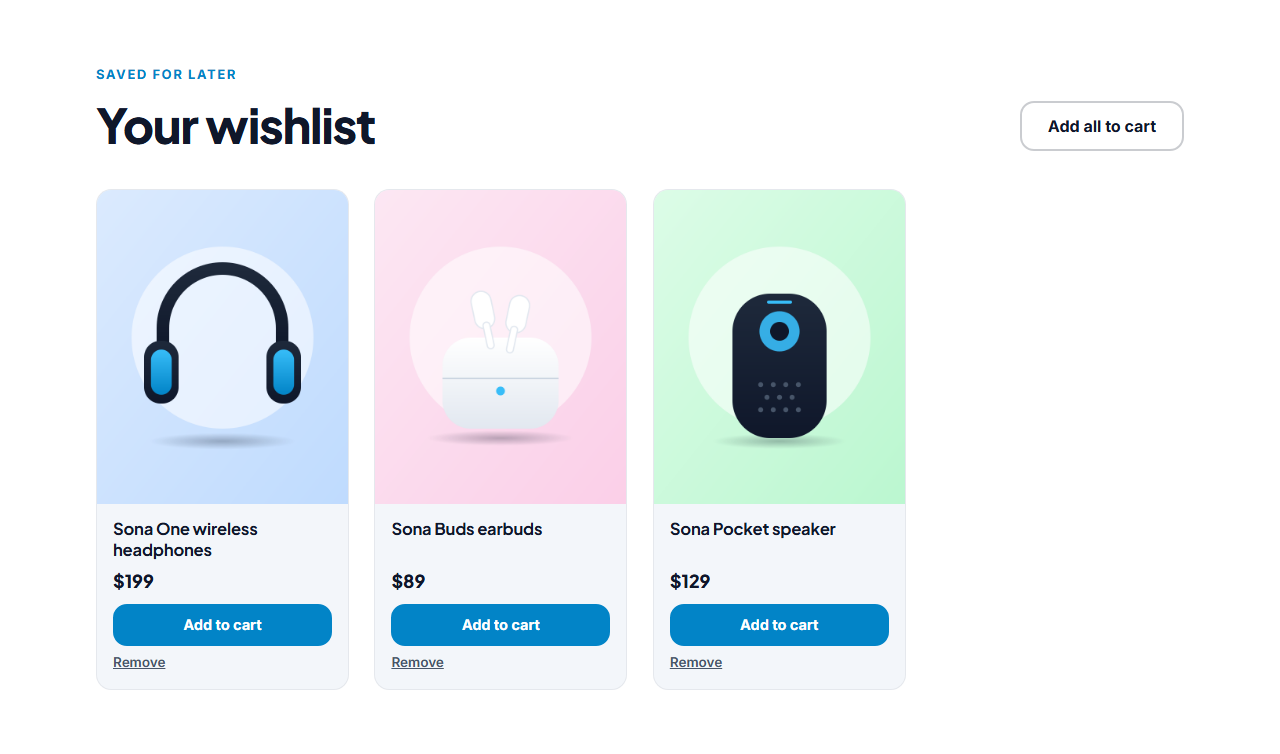
Wishlist Page
Responsive · HTML, React & Vue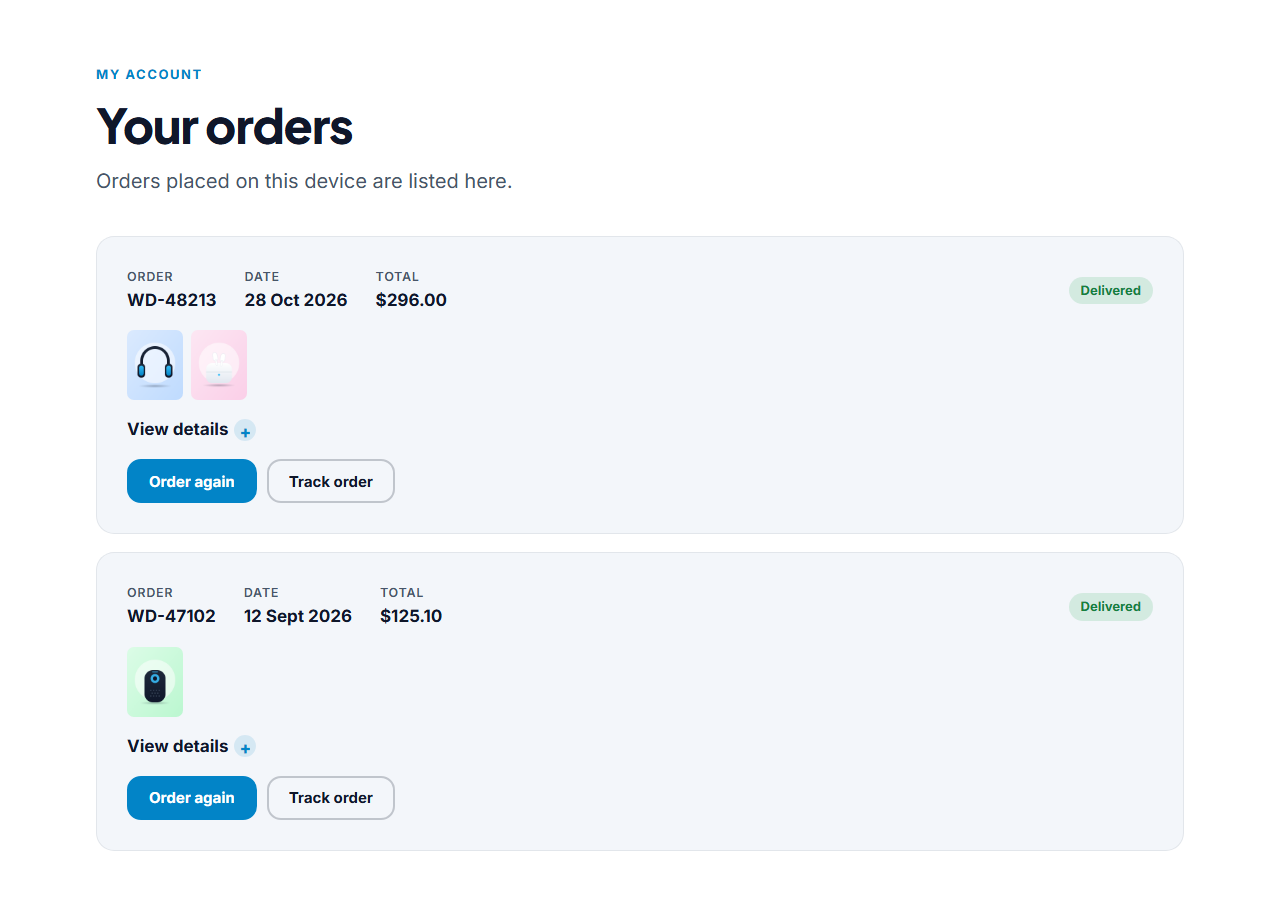
Order History (My Orders)
Responsive · HTML, React & Vue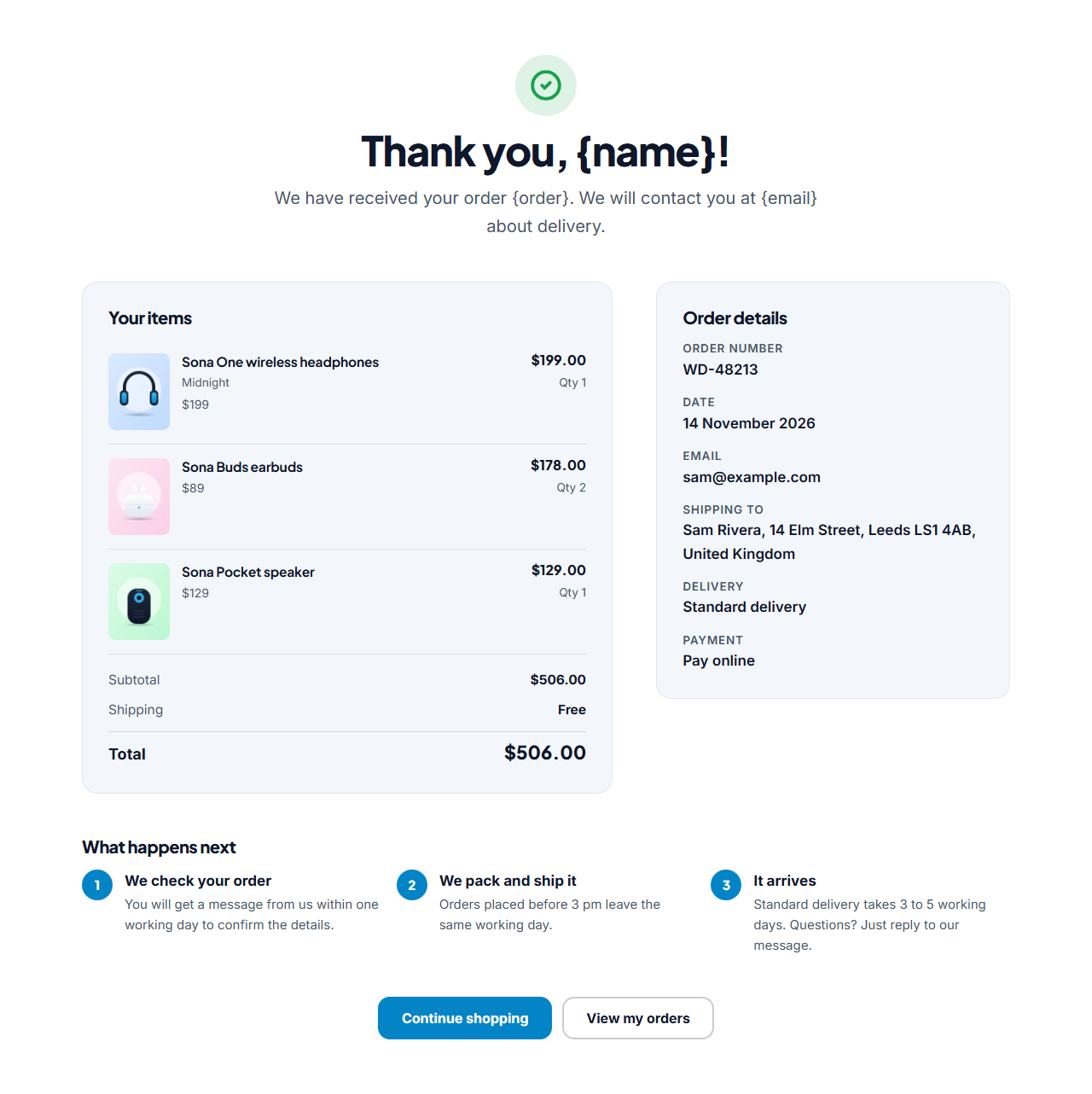
Order Confirmation (Thank You)
Responsive · HTML, React & Vue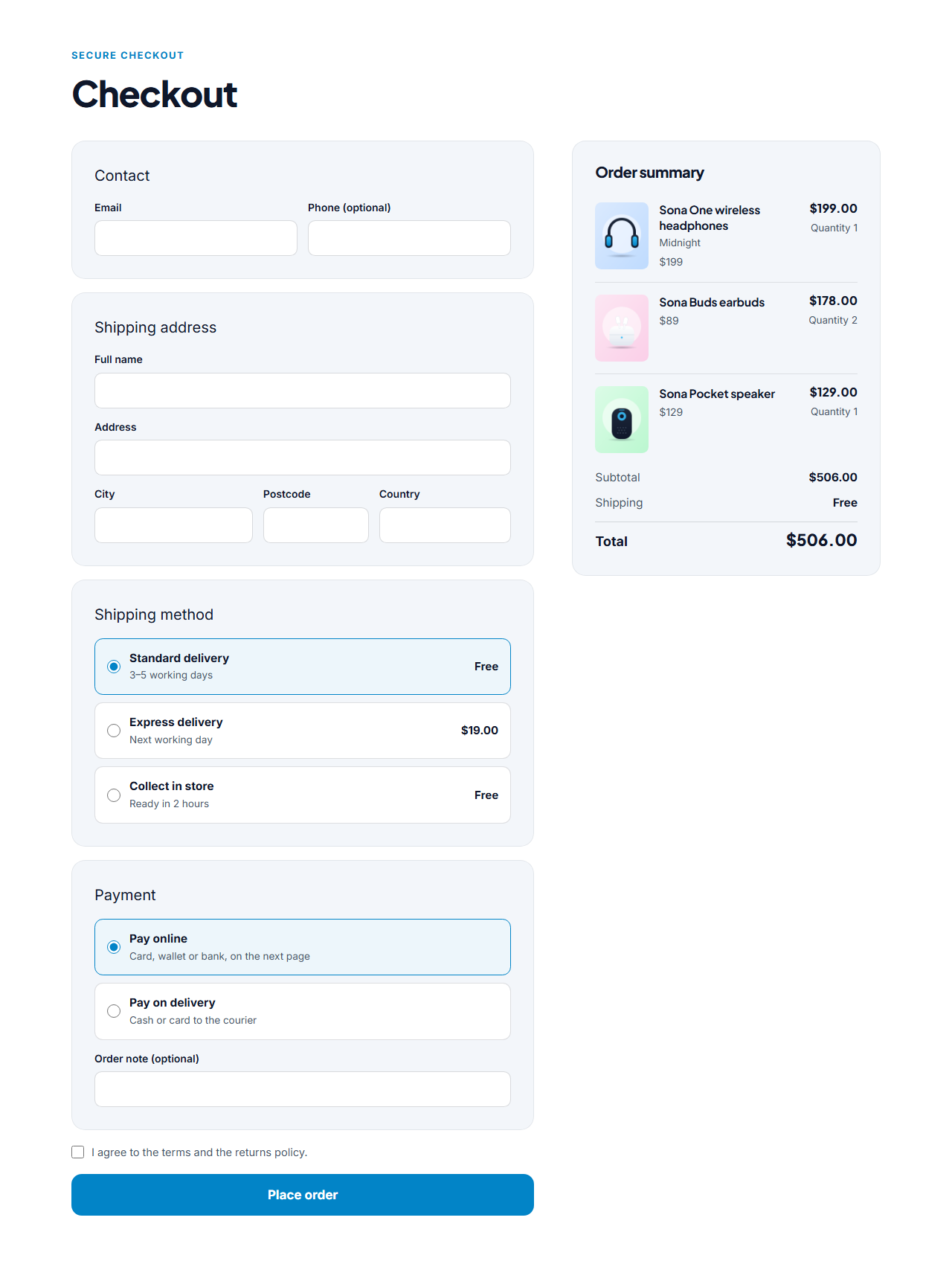
Checkout Page
Responsive · HTML, React & Vue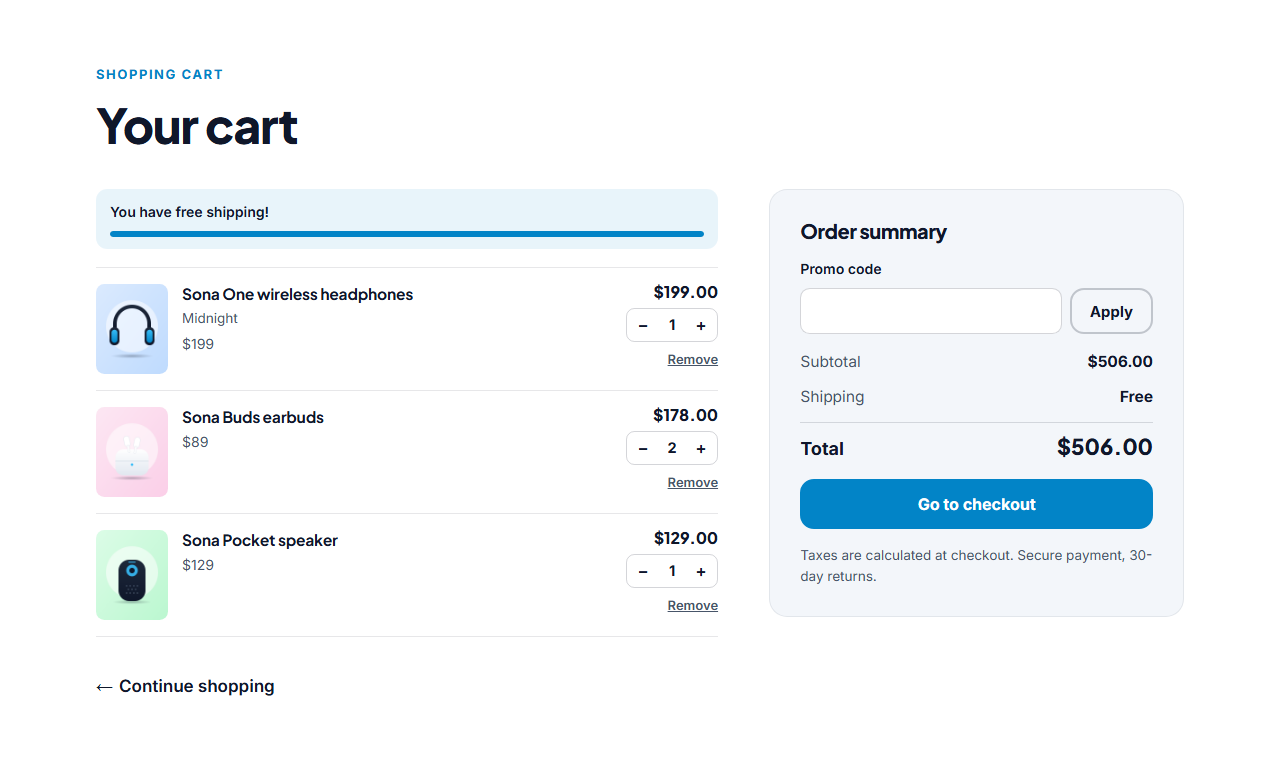
Cart Page
Responsive · HTML, React & VueCart, Checkout & Orders
5 sections · Responsive · GSAP animation · HTML, React & Vue
About these sections
Cart, Checkout & Orders
A shop is more than a product page. These sections are the pages after Add to cart, all sharing one small cart that lives in the visitor's browser, so they work on a static site with no server and no account.
The Cart Page shows the items with quantity steppers, a free-shipping bar, a promo code box and a sticky order summary. The Checkout Page collects contact details, an address, a shipping method and a payment option, then sends the order to your form service or WhatsApp, or on to a payment link, with no card fields on your page. The Order Confirmation thanks the shopper and shows the saved order and what happens next.
The Order History lists past purchases with an Order again button, and the Wishlist Page keeps the products shoppers saved with the heart. The slide-in Cart Drawer and the Product Listing, Product Detail and Product Strip complete the shop, and the Online Store website template joins them all.
Be clear about the limits: there is no stock control, tax engine or order management in the plain version, so for a large catalogue use a hosted shop platform and keep these pages as the design.
Cart Page: The full shopping cart page. The shopper's items sit on the left with photos, options, quantity steppers and Remove links, above a free-shipping progress bar. On the right a sticky order summary shows the subtotal, a promo code that you define, the shipping cost and the total, with a Checkout button. It reads the shared cart saved in the visitor's browser, so it works with the Product Detail, Product Grid and Cart Drawer sections.
Checkout Page: A clean one-page checkout. The shopper gives contact details and a shipping address, picks a shipping method and a payment option, and sees the order summary beside the form. When they press Place order the page sends the order to your form service (Formspree and similar), opens WhatsApp with the order text or goes to your payment link (Stripe, PayPal, Razorpay), then shows the confirmation page. There are no card fields: payment is handled by the service you choose.
Order Confirmation (Thank You): The page shoppers land on after checkout. A big check mark and a thank-you message, the order number, the items they bought with photos, the totals, the shipping address, method and payment choice, and a "what happens next" list. It reads the order saved by the Checkout Page, so every shopper sees their own order, and it offers links to keep shopping and to view their orders.
Order History (My Orders): A "My orders" page for past purchases. Each order is a card with the order number, date, status and total, a row of product photos, and a details view with every item, the totals, the delivery address and the payment choice. An Order again button puts the same items back in the cart, and an optional Track order link points to your tracking page. Orders come from the Checkout Page and are saved in the shopper's browser, so no account is needed.
Wishlist Page: A wishlist page for the products a shopper saved with the heart button. Each saved product is a card with its photo, name and price, an Add to cart button and a Remove link, with an Add all to cart action at the top. The wishlist is kept in the visitor's browser, so no account is needed, and the heart on the Product Detail, Product Grid and mega menu stays in sync with it.
Browse other categories
More Section Categories
Real-world uses
Best Uses for Cart, checkout & orders Sections
How it’s different
How These Section Templates Are Different
Step by step
How to Use
- 1Pick a sectionOpen one of the cart, checkout & orders sections above. Your edits autosave in your browser as you go.
- 2Edit the contentChange the text, buttons, links and images in the panel, and switch optional parts on or off.
- 3Add your brandPick colours, fonts, radius and width, or apply your saved brand kit; every section shares the same theme.
- 4Animate and previewChoose a GSAP entrance effect, press Play animation, and check desktop, tablet and mobile.
- 5ExportDownload HTML or a ZIP, copy a React or Vue component, or fork it into My Code.
Got questions?
Frequently Asked Questions
No. The checkout never shows card fields. It sends the order to a form service or WhatsApp, or sends the shopper to a payment link from Stripe, PayPal or Razorpay, which take the payment securely.
In the browser of the visitor (localStorage), shared by every shop section on your site. It works without an account or a server, but it is not shared between devices.
Yes, but they are designed to work together: Add to cart fills the cart, the drawer and cart page show it, the checkout saves the order and the confirmation and history pages read it.
Cart Page: The full shopping cart page. The shopper's items sit on the left with photos, options, quantity steppers and Remove links, above a free-shipping progress bar. On the right a sticky order summary shows the subtotal, a promo code that you define, the shipping cost and the total, with a Checkout button. It reads the shared cart saved in the visitor's browser, so it works with the Product Detail, Product Grid and Cart Drawer sections. Checkout Page: A clean one-page checkout. The shopper gives contact details and a shipping address, picks a shipping method and a payment option, and sees the order summary beside the form. When they press Place order the page sends the order to your form service (Formspree and similar), opens WhatsApp with the order text or goes to your payment link (Stripe, PayPal, Razorpay), then shows the confirmation page. There are no card fields: payment is handled by the service you choose. Order Confirmation (Thank You): The page shoppers land on after checkout. A big check mark and a thank-you message, the order number, the items they bought with photos, the totals, the shipping address, method and payment choice, and a "what happens next" list. It reads the order saved by the Checkout Page, so every shopper sees their own order, and it offers links to keep shopping and to view their orders. Order History (My Orders): A "My orders" page for past purchases. Each order is a card with the order number, date, status and total, a row of product photos, and a details view with every item, the totals, the delivery address and the payment choice. An Order again button puts the same items back in the cart, and an optional Track order link points to your tracking page. Orders come from the Checkout Page and are saved in the shopper's browser, so no account is needed. Wishlist Page: A wishlist page for the products a shopper saved with the heart button. Each saved product is a card with its photo, name and price, an Add to cart button and a Remove link, with an Add all to cart action at the top. The wishlist is kept in the visitor's browser, so no account is needed, and the heart on the Product Detail, Product Grid and mega menu stays in sync with it.
Yes. Every section is free for personal and commercial work, with no account, no watermark and no attribution: export it on its own as HTML, React, Vue or Next.js from its page, or use it in a website you build and export in the Website Builder.